
How to Use Tuffpuff Casino on Android in Canada
Using our casino from an Android phone doesn't require you to rebuild your account or learn a different version of the site. The mobile layout gives you access to your existing profile, games, promotions and cashier from a smaller screen.
If you've searched download Tuffpuff, here's the important part: you don't need to install an unknown APK to play with us. You can open the casino in a supported mobile browser and, if you want faster access, save it to your home screen as a shortcut.
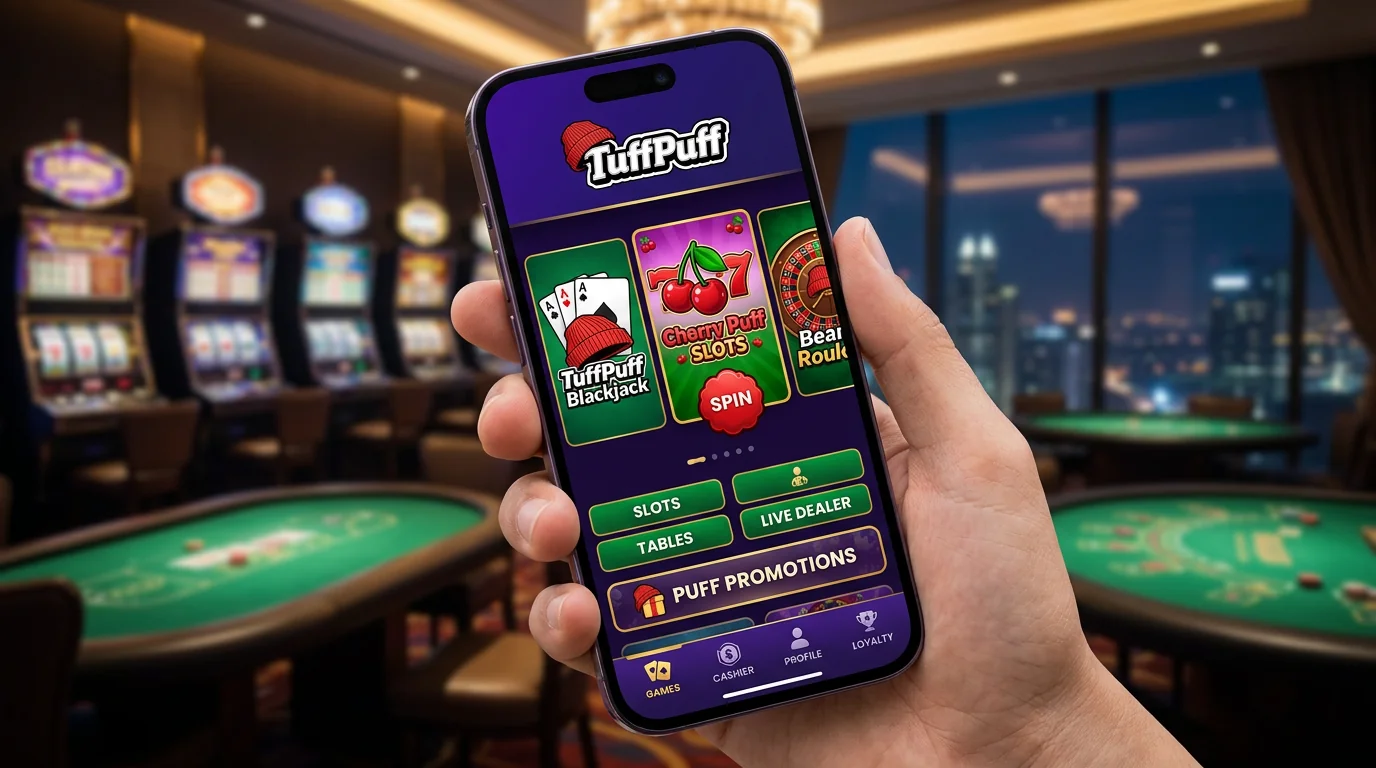
Access Tuffpuff Casino on Android
Let's start with the simplest route. Tuffpuff Casino Android access works through the mobile version of our site, so you can open the same account from your phone without creating a separate mobile profile.
Getting Started on an Android Device
Open a current browser on your Android phone and visit our casino as you normally would on desktop. Chrome and Samsung Internet are practical options for opening the mobile layout and creating a home-screen shortcut.
If you see pages promising a separate APK when you search download Tuffpuff, don't assume that file comes from us. Our browser-based access means you can reach the casino without installing software from an unfamiliar source.
A quick Android setup looks like this:
- Open our site in your preferred Android browser.
- Sign in with your existing account details.
- Open the browser menu.
- Choose the option to add the site to your home screen.
- Confirm the shortcut and place it where you want it.
That shortcut can make the Tuffpuff app experience feel closer to a regular mobile application without forcing you through a separate installation process. You still access the same account and casino environment.
Mobile Browser and App Access
Here's the thing, the phrase Tuffpuff Casino app doesn't have to mean a traditional store download. On Android, the practical setup is browser access with the option to keep a home-screen shortcut for faster return visits.
This also keeps updates simple because the latest site version loads when you open it. You don't have to manually replace an old APK whenever we change the mobile experience.
| Access option | Android | Extra installation | Account used |
| Mobile browser | Yes | No | Existing account |
| Home-screen shortcut | Yes | No APK | Existing account |
| Desktop browser | Yes | No | Existing account |
| Tuffpuff Casino iOS access | iPhone/iPad | No APK | Existing account |
Players comparing Android with Tuffpuff Casino iOS will notice the basic idea is similar. Android users can save the site through their browser, while iPhone users can use Safari's Add to Home Screen option.
Log In to Tuffpuff on Android
Now, signing in from a phone uses the same account you've already created. There's no separate username or password just because you've switched from desktop to the Tuffpuff mobile app style of access.
Entering Your Account Details
Open the login area and enter the email and password linked to your account. If your browser offers to autofill them, check that it's using the latest saved password rather than an older one.
The Tuffpuff Casino app shortcut takes you back to the same mobile site, so your normal login details still apply. If a password has changed recently, update the saved version in your browser or password manager before trying again.
For a cleaner sign-in, check a few basics:
- Use the email attached to your player account.
- Watch for accidental spaces when pasting credentials.
- Update any outdated password saved by your browser.
- Avoid signing in through links from unknown messages.
- Use password recovery if you genuinely can't remember the current password.
Big plus, switching devices doesn't mean registering twice. One valid account is enough whether you're entering through desktop, Android or another supported mobile browser.
Staying Signed In Securely
A personal phone can remember your login, but convenience should still make sense for the device you're using. If other people have access to that phone, logging out after a session is the safer choice.
Don't save account credentials on a shared device simply to make the Tuffpuff app open faster. Your casino balance, payment activity and personal details all sit behind the same account access.
Play Casino Games on Android
Our mobile lobby lets you browse and launch games without needing a second casino catalogue. You can move between categories, open titles and return to your account from the same mobile session.
Finding Mobile-Compatible Games
Most modern titles are built to work on smaller screens, but the layout can still differ from desktop. Open the game from the lobby and let it load fully before rotating your device or switching between browser tabs.
The Tuffpuff Casino mobile app style of access includes the same main game areas you expect from our casino. Depending on the current lobby, you can browse categories such as Slots, Jackpot, Live Casino, Bonus Buy, Instant Games, Drops & Wins and 1000 Wins.
- Slots for regular reel-based play
- Jackpot titles with larger prize mechanics
- Live Casino tables and game-show formats
- Bonus Buy titles with paid feature access
- Instant Games for quicker rounds
- Drops & Wins promotional titles
- 1000 Wins games and related releases
If a title doesn't load well on your phone, close it and try another current browser before assuming the game itself is unavailable. A weak connection, blocked cookies or an outdated browser can affect mobile game loading.
Accessing Promotions
Promotions are available through your account rather than through a separate Android-only system. That means our Android setup doesn't require a different bonus profile.
You can review active offers before depositing and check the game or wagering conditions attached to them. This matters because some promotions apply only to selected games or use different contribution rates across casino categories.
If you've searched download Tuffpuff mainly because you want quicker access to promotions, a home-screen shortcut does the job without changing how your offers work. Open the shortcut, sign in and go to the same promotions area you use in the browser.
Use Payments from an Android Device
Let's move to the cashier. Mobile access lets you open your account's available payment section without switching back to a computer.
Making a Deposit
Choose Deposit from your account area, select one of the methods currently available to you and follow the on-screen steps. Deposit options can depend on your account and location, so use the methods displayed in the cashier rather than assuming every player sees the same list.
The Tuffpuff mobile app shortcut doesn't create a separate wallet. Any successful deposit is connected to your normal casino balance, just as it would be when you use the desktop site.
Before confirming a mobile deposit:
- Check the amount you've entered.
- Confirm the selected payment method.
- Read any bonus activation requirements first.
- Keep your connection stable until the process finishes.
- Don't refresh the payment page repeatedly while it's processing.
Honestly, the small screen is the main reason to slow down here. A quick check before confirming is easier than correcting the wrong amount or selecting the wrong promotion afterwards.
Requesting a Withdrawal
Withdrawals are also handled from your existing account. Open the cashier, choose the available withdrawal route and enter the requested information carefully.
Using the Tuffpuff Casino app style of access doesn't change verification requirements. If we need identity or payment checks before processing a request, you'll still need to complete those steps from the same account.
| Payment task | Mobile access | What to check first |
| Deposit | Available through cashier | Amount and method |
| Bonus deposit | Available when eligible | Promo conditions |
| Withdrawal request | Available through account | Details and verification |
| Payment review | Account based | Current status |
Keep the browser open until you've reached the confirmation stage. Closing the page during a payment step can make it harder to tell whether a request was submitted correctly.
Solve Tuffpuff Android Problems
Here's where mobile access can occasionally get annoying. Most problems come from the browser, cached data or connection quality rather than from the casino account itself.
Installation and Loading Issues
Because you don't need a standalone APK, an "installation problem" is usually connected to adding or opening the home-screen shortcut. If the shortcut stops responding, remove it and add it again from a fresh browser session.
People searching download Tuffpuff sometimes end up with third-party files that aren't needed for our normal Android access. Avoid installing unofficial packages and return to the browser route instead.
If the Tuffpuff Casino mobile app style shortcut won't open correctly, try these fixes:
- Open the casino directly in the browser first.
- Refresh the page completely.
- Remove and recreate the home-screen shortcut.
- Update your Android browser.
- Clear site-specific cached data and cookies.
- Restart the browser before signing in again.
The same principle applies if the Tuffpuff app appears stuck on an old screen. The shortcut is only an entry point, so fixing the underlying browser session usually solves the problem.
Browser and Connection Errors
An unstable Wi-Fi or mobile-data connection can interrupt login, game loading and cashier pages. Reconnect first, then reopen the page rather than repeatedly tapping buttons while the connection is dropping.
Browser extensions, strict cookie settings and old cached files can also interfere with the mobile site. If the problem continues, try a private tab or another updated browser to see whether the issue follows you.
Now, don't jump straight to another download when a page fails. The safest response to a broken Tuffpuff Casino app session is usually to reopen the official browser version, clear the affected site data and sign in again.
If the Tuffpuff app shortcut still behaves differently from the browser page, recreate the shortcut after the browser is working normally. That keeps you from troubleshooting two things at the same time.